Skip to content
| Manual Bsera
| Manual Bsera

English
English
Arabic French

| Manual Bsera
| Manual Bsera
Popular Search reportreport cardBehaviorالمالت

Teacher Account

  • Login Page
  • Motivation
    • The New Way of Learning
    • My Score
  • Home Page
    • Edit Profile
    • Homepage
    • My Tasks & Action Required 
    • Courses Widget (All Courses)  
    • Announcements & Upcoming Events 
    • PUBLIC PROFILE 
    • Clubs Courses
  • Show all courses
    • COURSES
      • Charts and Behavior Analysis
      • Tab 1
        • Excel Sheet Grades Import
        • Manage Students Groups
        • Managing Content
        • Lecture Management
        • Students List
        • Students’ Report Summary
      • Tab 2
        • Course Materials
        • Video Lectures
      • Tab 3
        • In-Class Activity
        • Assignments, Exams
        • Assignment Actions
        • Assignment Sections
        • Assignment Questions
        • Exams
        • Exam Styles
        • Exam Sections
        • Assignment settings
        • Exam Settings
        • Exam Settings | More options
      • Tab 4
        • Digital Libraries
        • Weekly Study Plan
        • Semester Plan
        • Course Preparations
      • Tab 5
        • Management of Timetable 
  • Books
    • Books
  • Classroom Attention Indicator
    • Classroom Attention Indicator –
  • Messages
    • Sent Messages
    • Draft Messages
    • Archived Messages
    • Compose
    • Deleted Messages
  • Discussions
    • Discussion Rooms
    • Adding New Discussion Rooms
    • Adding New Posts
    • Comments Management
  • Questions Banks
    • Add Questions from Q-Banks
    • Exam Questions
    • Add Bulk Questions
  • My Schedule
    • Schedule
    • Academic Calendar
      • Academic Calendar
      • Editing Events
      • Adding Events
  • Virtual Classes
    • Virtual Classrooms
  • Teacher Library
    • PUBLIC LIBRARY
    • VIRTUAL LABS 
    • My Files
  • Absence Report
    • Absence Report
  • Certificates | Letters
    • Issued Certificates | Letters
    • Certificates | Letters
    • My Certificates
    • Sign Multiple Certificates
    • My Letters
    • Issue Certificates
  • Teacher B~SERA AI
    • Manage Content (Xsera) 
    • My Teaching Hub 

Parent Account

  • Login Page
  • Homepage
    • Personal Menu
    • Edit Profile
    • Personalized Child Dashboard & Learning Analytics 
    • Services & Quick Access Tools 
    • Homepage
    • Student Accounts
  • Messages
    • Deleted Messages
    • Draft Messages
    • Archived Messages
    • Compose
    • Sent Messages

Student Account

  • Login Page
  • Home Page
    • Personal Menu
    • Edit Profile
    • Quick Access – Exams, Assignments, Virtual Class 
    • Student Homepage
  • Subjects
    • Subjects
    • Course Materials
    • Video Lectures
    • Discussion Rooms
    • Online Assignments 
    • Exams
  • Previous Course Contents
    • Previous Subject Contents
  • Book
    • books
  • My Schedule
    • Schedule
    • Weekly Study Plan
    • Academic Calendar
      • Academic Calendar
      • Adding Events
      • Editing Events
  • Digital Library
    • Digital Library 
    • Subjects Library
    • Public Library
    • Custom Libraries
    • My files
  • Evaluation Tools
    • Evaluation
    • form
  • Virtual Classes
    • Virtual Classrooms
  • Messages
    • Draft Messages
    • Messages
    • Compose
    • Inbox
    • Sent Messages
    • Archived Messages
    • Deleted Messages
  • Attendance
    • Daily Lateness
    • Lesson Absences
    • Daily Absences
    • Subject Absences Summary
    • Lesson Lateness
    • Absences Summary
  • Certificates | Letters
    • Certificates | Letters
  • Student B~SERA AI
    • Circle to Learn  
    • Study Plan (Student) 
    • My Learning Hub 

Teacher Supervisor Account

  • Login Page
  • Homepage
    • Edit Profile
    • Announcements & Upcoming Events 
    • Courses Widget (All Courses)  
    • My Tasks & Action Required 
    • Homepage
  • Academic Calendar
    • Calendar
    • Editing Events
    • Adding Events
  • Certificates | Letters
    • Issue Certificates
    • Certificates | Letters
    • My Letters
    • My Certificates
    • Issued Certificates | Letters
  • Evaluations | Surveys
    • Forms
    • Evaluation | Surveys
  • Messages
    • Draft Messages
    • Compose
    • Archived Messages
    • Mailbox
    • Deleted Messages
    • Sent Messages
  • Management Reports
    • Management Reports
  • Public Library
    • Public Library/Digital Content
  • Questions Banks
    • Questions Banks
  • Teachers list
    • Exams/Homework Without Questions
    • Teachers’ List
  • Virtual Classrooms
    • Upcoming Smart Classes
    • All Smart Classes
    • Recorded Smart Classes
    • Virtual Classrooms
  • Weekly Plan
    • Weekly Plan
  • Question Banks
    • Question Banks
  • Teachers' Statistics
    • Teachers’ Statistics
  • Teachers' Attendance Report
    • Teachers’ Attendance Report
  • Central Exams Comprehensive Report
    • Central Exams Comprehensive Report

Administrator Account

  • Login Page
  • Dashboard/Realtime Overview
    • Teachers Attendance Report
    • Teachers’ Preparations Report
    • Students’ Scores
    • Most Active Teachers in the Group
    • Online Users
    • Dashboard/Realtime Overview
  • important links
    • IMPORTANT LINKS 
  • Homepage
    • Edit Profile
    • Favorite Reports  
    • Goals Module (Xsera Quests) 
    • To Do List and Announcements 
    • Action Queue 
    • Active Alerts 
    • Personal Menu
    • Homepage
  • Support / Request
    • Transfer All School Guardians
    • Activation Ticket Resolution Report
    • Transfer Student
    • Fix Score
    • User Information
    • Guardian Transfer
    • New Feature Requests
    • LMS Support
    • Activation Ticket Resolution 
    • Internal Support
    • FAQs
  • Users
    • Manage Badge
    • Enhancements to User Management Filters
    • Users / Students
    • Students Without Sections
    • Guardians
    • Teachers
    • Teacher’s Statistics
    • Supervisors
    • Management
  • Weekly Plan
    • Weekly Plan /Dynamic weekly
    • weekly plan / Static
  • Subject Management
    • Questions Banks
    • Schedule Journal
    • Courses Management
    • Courses
    • Adding Courses
    • Course Templates
    • Trees
    • Areas
    • Areas – Adding Criteria
    • Exams Schedule
    • Exams Mark Comparison
    • Full Schedule
    • lectures
      • Lectures/ Schedules 
      • Lectures – Students List
      • Adding Lectures
      • Lectures/Manage Halls and Manage Medals 
      • Alternative Teacher
      • Lectures
      • Managing Timeslots
      • Adding Bulk Lectures
  • Settings
    • Enable PDF Conversion
    • Closure Management
    • Settings /part one
    • System Settings – part Two
    • System Settings / part three
    • System Settings—Part Four
    • Stages
    • Years
    • Years/Adding a Semester Plan
    • Years – Copy to Semester
    • Review Students E-Portfolios
  • Calendar
    • Adding Tasks to Calendar
    • Editing Events
    • Adding Events
    • Calendar
  • Messages
    • Draft Messages
    • Archived Messages
    • Inbox
    • Sent Messages
    • Compose
    • Deleted Messages
  • Announcements
    • Announcements
  • Report
    • Reports
    • Management Reports
    • Admissions Request Report
    • Redemption Statistics
    • Schools: C-Inspire Report
    • Students Badge Report
    • Medals Report
    • Files Log
    • School Group Absences
    • Full Day Absences Detailed Report
    • Lectures Absences Detailed Report
    • Activity Log
    • Messages Log
    • Score Drop
    • VCR Activation Report
    • Modules Activation Report
  • Certificates | Letters
    • Certificates | Letters
  • Forms and Assessments
    • Forms and Assessments
    • Forms
    • Evaluations
    • Assessments
  • Virtual Classrooms
    • Manage Users
    • Virtual Classrooms
  • Public library
    • Custom Libraries
  • B~SERA AI
    • Questions Banks (Xsera) 
    • Course Template 360 View 
    • Xsera AI Academic Planner 
    • Xsera AI Curriculum Engine 

Manager Account

  • Login Page
  • Homepage
    • Edit Profile
    • Personal Menu
    • Realtime Overview
    • Students’ Scores
    • Teachers’ Attendance Report
    • Teachers’ Preparations Report
  • Students
    • Daily Lateness
    • Daily Absences
    • Students’ Numbers Report
    • Registration Approval
    • Absences and Behaviors Reports
    • Students
  • Teachers
    • Daily Absences
    • Conditional Course Absences Summary
    • Course Absences Summary
    • Course Absences
    • Lectures Absences
    • School Schedule
    • Teachers Timeslots
    • Workload Report
    • Teachers
  • Guardians
    • Parents/Guardians
  • Messages Log
    • Messages Log
  • Class Visits
    • Class Visits
    • Adding New Class Visits
    • Copy from Template
  • Absences
    • Full Day Absences Detailed Report
    • Lectures Absences Detailed Report
  • Announcements
    • Announcement
    • Add Announcements
  • Stages
    • Stages
  • Messages
    • Draft Messages
    • Archived Messages
    • Sent Messages
    • Mailbox –
    • Inbox –
    • Deleted Messages
    • Compose
  • Academic Calendar
    • Select Calendar Owner
    • Adding Tasks to Calendar
    • Editing Events
    • Adding Events
    • Calendar
  • Management Reports
    • Management Reports
  • VCR Activation Report
    • VCR Activation Report
  • Public Library
    • My Files
    • Custom Libraries
    • Public Library (All)
  • Evaluations | Surveys
    • Evaluation stages report
    • Adding Surveys
    • Evaluations and Surveys
  • Forms
    • Forms
  • Certificates | Letters
    • Create New Templates
    • Manage Layouts
    • Create New Layout
    • My Signature
    • My Letters
    • My Certificates
    • Manage Templates
    • Issue Certificates | Letters
    • Certificates | Letters
  • Virtual Classrooms
    • Virtual Meetings
      • Virtual Meetings
      • Virtual Meetings
        • Recorded Smart Classes
        • Upcoming Smart Classes
        • MS Teams
          • MS Teams Meeting Room Main Screen
          • Joining MS Teams Meeting Rooms
          • Adding Virtual Meetings Using MS Teams
        • Zoom Meeting
          • Zoom Meeting Room Main Screen
          • Adding New Zoom Meeting Rooms
          • Joining Zoom Virtual Meeting Room
  • Statistics
    • Communication Statistics
  • Activation Reports
    • Activation Reports
  • Stats
    • General Statistics
    • Stats
    • Statistics with Interaction
  • Full Schedule
    • Full Schedule

Adviser Account

  • Login Page
  • Main Menu
    • Main screen
  • HOME
    • Edit Profile
  • Students List
    • Conditional Courses Absences
    • Student Affairs Summary
    • Full day Absences Detailed Report
    • Student list
    • Course Absences Summary
    • Absences Summary
    • Course Absences
    • Daily Absences
    • Students List
  • Guardians List
    • Parents List
  • Academic Calendar
    • Edit Event
    • Adding Event
    • Academic Calendar
  • Messages
    • Inbox
    • Draft Messages
    • compose
    •  Sent Messages
    • Deleted Messages

Floor Supervisor

  • Login Page
  • Absences
    • Teachers Attendance Report
    • Full Day Absences Detailed Report
  • Students List
    • Daily Absences
    • Course Absences
    • Absences Summary
    • Course Absences Summary
    • Conditional Courses Absences
    • Full day Absences Detailed Report
    • Student Affairs Summary
    • Students List
  • Messages
    • Inbox
    • Trash
    • Sent Messages
    • Archived Messages
    • Draft Messages
    • Compose
    • Mailbox

Senior Teacher

  • Login Page
  • Homepage
    • Edit Profile
    • Announcements & Upcoming Events 
    • Courses Widget (All Courses)  
    • My Tasks & Action Required 
    • Homepage
  • Academic Calendar
    • Calendar
    • Adding Events
    • Editing Events
  • Certificates | Letters
    • Certificates | Letters
    • Issued Certificates | Letters
    • My Certificates
    • My Letters
    • Issue Certificates
  • Evaluations | Surveys
    • Forms
  • Messages
    • Sent Messages
    • Deleted Messages
    • Mailbox
    • Archived Messages
    • Compose
    • Draft Messages
  • Management Reports
    • Management Reports
  • Public Library
    • Public Library/Digital Content
  • Teachers list
    • Teachers’ List
    • Exams/Homework Without Questions
  • Virtual Classrooms
    • Virtual Classrooms
    • Upcoming Smart Classes
    • Recorded Smart Classes
    • All Smart Classes
  • Weekly Plan
    • Weekly Plan
  • Question Banks
    • Questions Banks
  • Teachers' Statistics
    • Teachers’ Statistics
  • Teachers' Attendance Report
    • Teachers’ Attendance Report
  • Central Exams Comprehensive Report
    • Central Exams Comprehensive Report
View Categories
  • Home
  • Docs
  • Administrator Account
  • B~SERA AI
  • Xsera AI Curriculum Engine 

Xsera AI Curriculum Engine 

The Xsera AI Curriculum Engine uses artificial intelligence to automate curriculum creation, map institutional hierarchies, assign learning outcomes, and provide an interactive 360-degree curriculum management workspace. 
Accessing Xsera AI Curriculum Engine  #

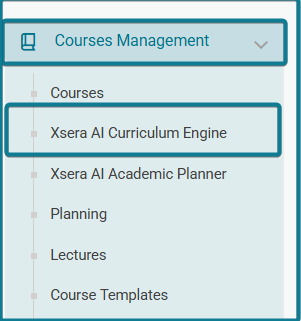
To access the Xsera AI Curriculum Engine, follow these steps: 

  1. Expand Courses Management from the left navigation sidebar. 
  1. Select Xsera AI Curriculum Engine. 
  1. The main repository page opens, displaying top filter controls and the primary Curriculums Table. 

Filter & Search Controls  #

At the top of the table, you can filter and refine listed records using: 

  1. Dropdown Filters: Filter by specific Curriculum Type, Levels, or Subjects. 
  1. Date Pickers: Specify a custom timeframe using Start date and End date. 
  1. Search Field: Search entries directly using Search by creator’s name. 
  1. Table Customization: Toggle between Rows view density or click Customize columns to show or hide specific table parameters. 

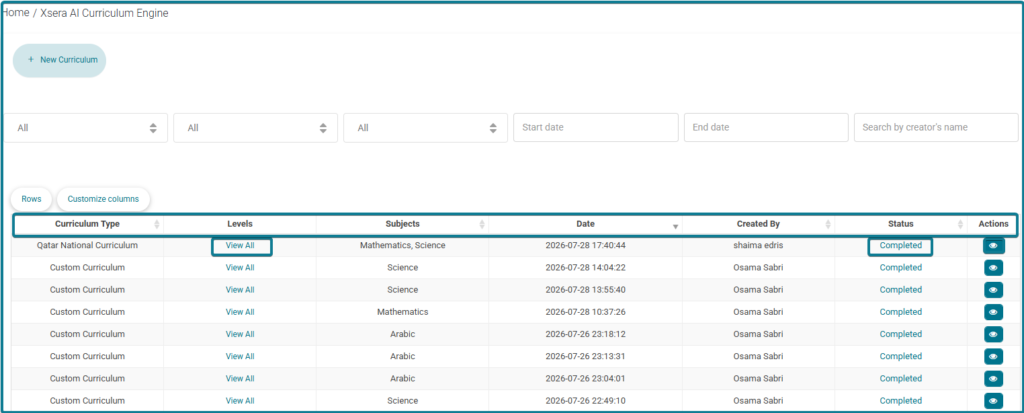
Curriculums Table Columns  #

The main table displays the following data fields for every generated or in-progress curriculum: 

  1. Curriculum Type: Displays the classification or type of curriculum (e.g., Custom Curriculum). 
  1. Levels: Shows the target grade levels associated with the curriculum (includes a View All link to expand all assigned grades). 
  1. Subjects: Lists the specific academic subject assigned to the curriculum (e.g., Science). 
  1. Date: Displays the exact creation date and timestamp (YYYY-MM-DD HH:MM:SS). 
  1. Created By: Identifies the author or system administrator who initiated the curriculum creation. 
  1. Status: Indicates the current processing state: 
  • Completed: Successfully processed; ready for management and Tree View 360. 
  • Pending: AI generation is currently in progress. 
  • Failed: The creation process encountered an error. 
  1. Actions: Contains the Eye icon (View) to open the Course Template Details pop-up and launch the Tree View 360 workspace. 

Creating a New Curriculum (4-Step Wizard)  #

Click + New Curriculum at the top left of the repository page to launch the creation wizard: 

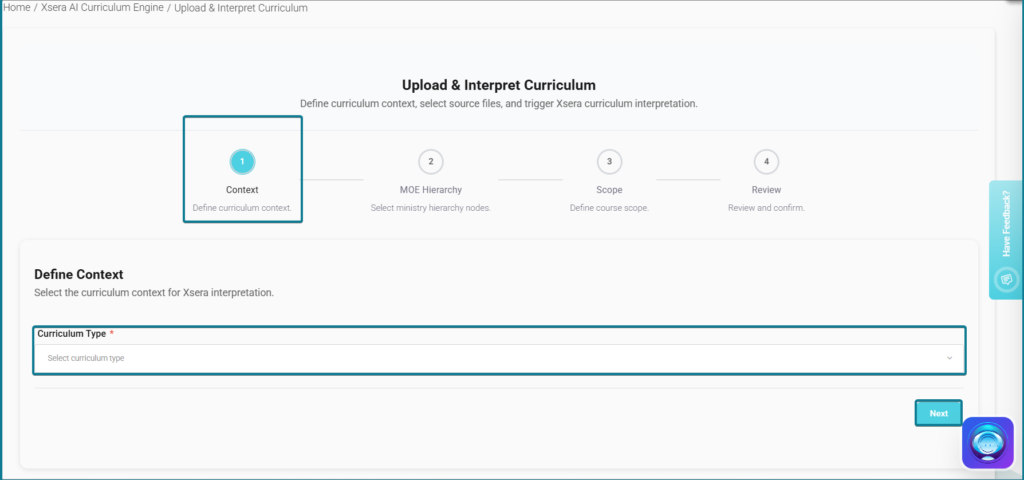
Step 1: Context (Define Context)  #

  1. Select your target Curriculum Type from the dropdown menu. 
  1. Click Next. 

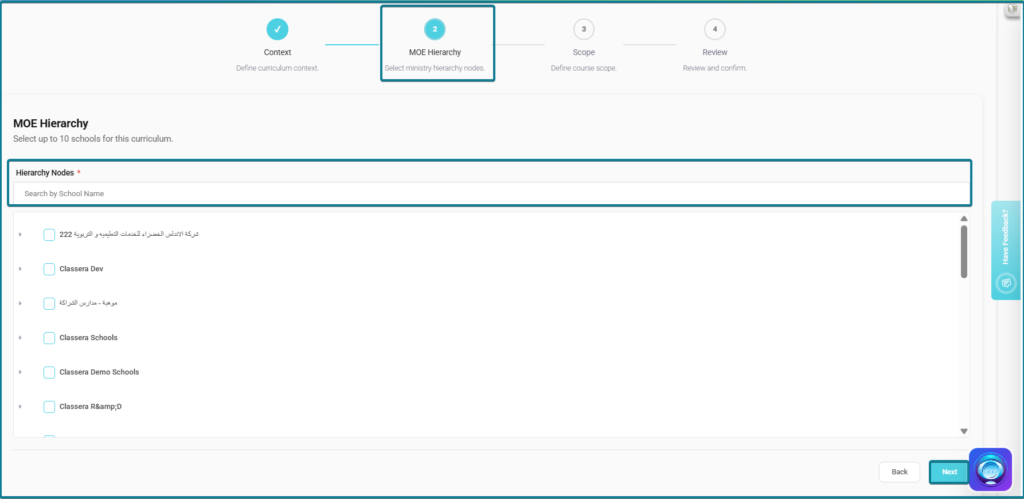
Step 2: MOE Hierarchy (Ministry Nodes)  #

  1. Select up to 10 designated school campuses or institutional nodes using the search bar or checkboxes. 
  1. Click Next. 

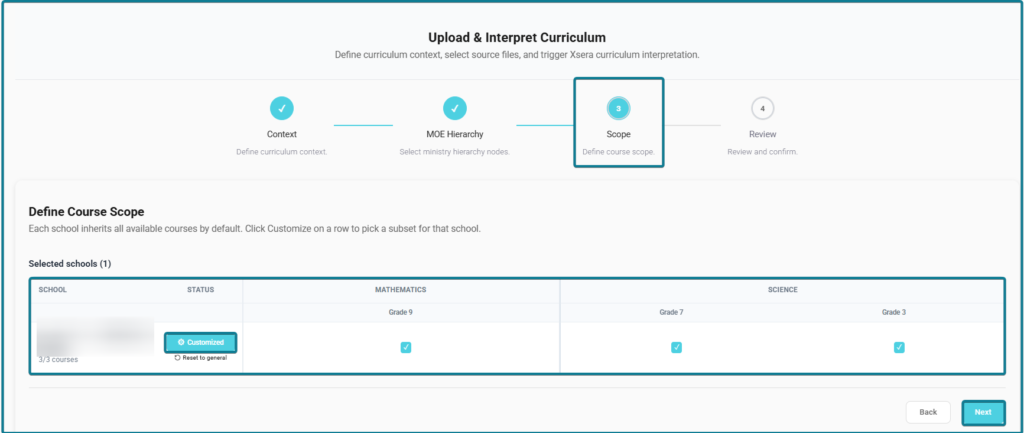
Step 3: Scope (Define Course Scope)  #

  1. Review inherited courses across selected campuses. 
  1. Customize grade parameters (e.g., Grade 7, Grade 9) or specific subjects (Mathematics, Science). 
  1. Click Next. 

  #

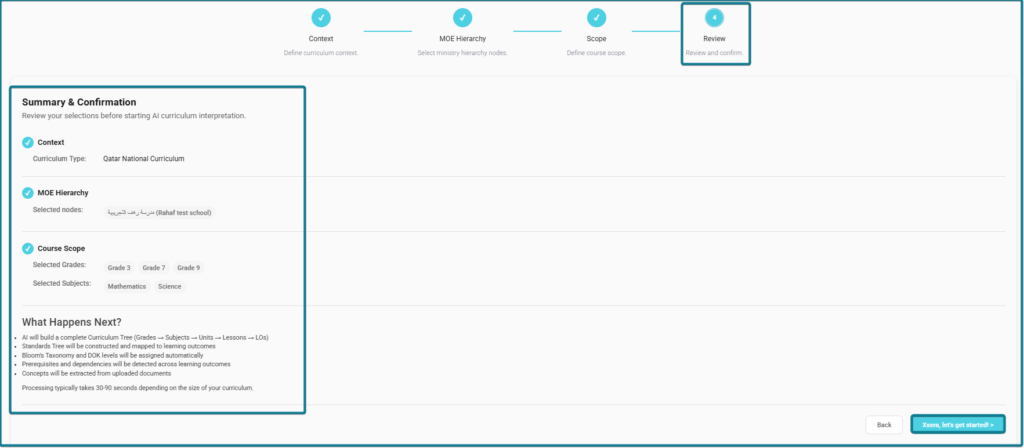
Step 4: Review & AI Build  #

  1. Review your configured summary (Context, Selected MOE Nodes, Grades, and Subjects). 
  1. Click Xsera, let’s get started!. 
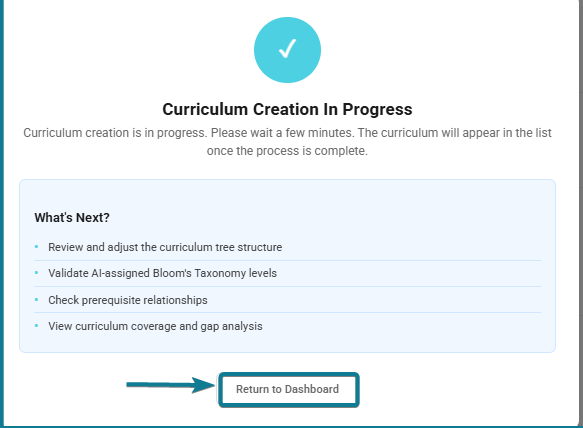
  1. A progress modal will track real-time AI milestones (Building Curriculum Tree, Mapping Outcomes, Assigning Bloom & DOK Levels). 
  1. Once processing is complete, click Return to Dashboard. 
Custom Curriculum 

Selecting Custom Curriculum expands the creation process into 5 steps (instead of 4). In this workflow, you will need to select your subject and grade, then upload your primary course book and standard documents under the Scope step. An extra step called Enrichment will also open, allowing you to upload up to 12 optional files (like teacher guides) so the AI can analyze and build your curriculum tree accurately. 
Accessing the Tree View 360 Workspace  #

To open the Tree View 360 workspace for any created curriculum, follow these steps: 

  1. Locate your curriculum row in the main repository table. 
  1. Under the Actions column, click the Eye icon (View). 
  1. The Course Template Details pop-up window opens displaying the master course name, assigned school, subject, level, and status. 
  1. Click the Action icon (External Link button) inside the pop-up table. 
  1. The system launches the Tree View 360 workspace (Home / Course Templates / Tree View 360). 
Working inside the Tree View 360 Workspace  #

Page Layout & Overview  #

When the Tree View 360 page opens, the screen is divided into two main panels: 

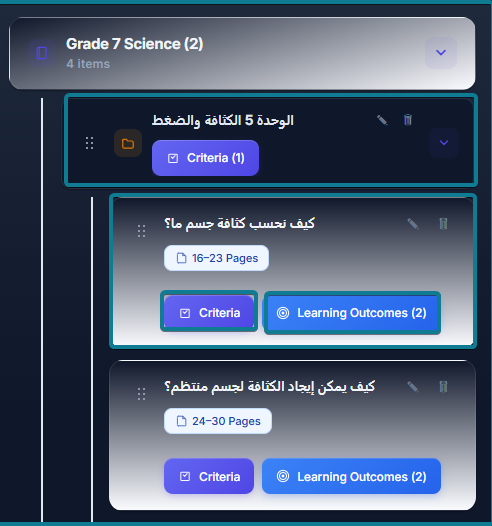
  • Left Panel (Curriculum Tree Sidebar): Houses the structured hierarchy containing the main course title, units, individual lesson cards, page tags, and interactive criteria/outcome buttons. 
  • Right Panel (Interactive Online Book Viewer): Displays the digital textbook viewer equipped with zoom controls, page jumping options, and full-screen document viewing tools. 

Direct Actions & Editing Features  #

1. Managing Structure & Titles: 

  1. Main Tree Title: Click the Pencil icon next to the header at the top of the left panel (e.g., Grade 7 Science (49)), enter the updated name in the inline text box, and click Save changes (or Cancel). 
  1. Unit & Lesson Titles: Click the Pencil icon on any individual unit card or lesson block to rename it directly. 
  1. Deleting Elements: Click the Trash icon on any unit or lesson card to permanently remove it from the curriculum tree. 

2. Interactive Online Book Navigation: 

  1. Each lesson card displays an assigned page range tag (e.g., 16–23 Pages, 24–30 Pages). 
  1. Clicking directly on a lesson card or its page range button automatically syncs the Right Panel, loading the exact pages of the digital textbook corresponding to that lesson. 

3. Linking Ministry Criteria: Click the Criteria button on any unit or lesson card to configure educational benchmarks: 

  1. The Criteria pop-up modal opens showing all linked standards (if empty, click + Add criteria). 
  1. Under CHOOSE AREA, select the target unit card (e.g., Unit 5 Density & Pressure). 
  1. Under CHOOSE CRITERIA, use the search bar or scroll down to check the desired benchmarks (each displays cognitive parameters like Level 2 / Understand). 
  1. Click Add selected to commit the benchmark mapping. 

4. Configuring Learning Outcomes: Click Learning Outcomes on any lesson card to open the dedicated outcomes manager: 

  1. Outcome Cards Display: Shows active target numbers alongside badges for Depth of Knowledge, Bloom’s Level, Competency, Pass Percentage, and linked textbook areas. 
  1. Editing Outcomes: Click the Pencil icon on any outcome card to expand its field form (Title, Complexity, Duration, Strategy, Tools). Update the necessary parameters and click Save changes. 
  1. Removing Outcomes: Click the Trash icon or the Red X button to unlink an outcome. 
  1. Adding Custom Outcomes: Scroll to the bottom of the modal and click + Add outcome to create a new learning target from scratch. 
5. Adding New Units: 
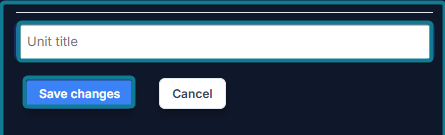
  1. Scroll to the bottom of the left panel’s curriculum tree list. 
  1. Click + Add unit. 
  1. Type the new unit name in the Unit title inline text field. 
  1. Click Save changes to insert the unit into your curriculum structure. 

Reflection in School Course Templates  #

Once a curriculum is created and processed by Xsera AI, it automatically reflects in the target school’s Course Templates repository (Home / Courses / Course Templates). 

To manage created templates directly: 

  1. Navigate to Courses Management > Course Templates from the sidebar. 
  1. Use the search bar or select the school campus filter. 
  1. The table lists all active templates with their Title and School. 
  1. Use the Action column controls to execute management tasks: 
  1. Eye Icon (View): Review template contents and structure. 
  1. Pencil Icon (Edit): Modify course template parameters and settings. 
  1. Trash Icon (Delete): Permanently remove the template from the school’s repository. 
  1. Dropdown Arrow: Access additional course management operations. 
What are your Feelings

Share This Article :

  • Facebook
  • X
  • LinkedIn
  • Pinterest
Xsera AI Academic Planner Questions Banks (Xsera) 
Table of Contents
  • Accessing Xsera AI Curriculum Engine 
  • Filter & Search Controls 
  • Curriculums Table Columns 
  • Creating a New Curriculum (4-Step Wizard) 
    • Step 1: Context (Define Context) 
    • Step 2: MOE Hierarchy (Ministry Nodes) 
    • Step 3: Scope (Define Course Scope) 
    •  
    • Step 4: Review & AI Build 
  • Accessing the Tree View 360 Workspace 
  • Working inside the Tree View 360 Workspace 
    • Page Layout & Overview 
    • Direct Actions & Editing Features 
  • Reflection in School Course Templates