


The Student Homepage serves as the primary operational hub within Classera for learners. It provides students with a real-time view of their enrolled courses, daily class schedule, upcoming assessments, gamification achievements, and recent school announcements.
To access this section:
- Log into your Classera Student account.
- You will land directly on the Dashboard Overview page.

Key Areas of the Student Homepage #
When you log in, the Homepage displays the following main areas:
1. Side Menu #
Runs along the left side of the screen and provides navigation to essential student modules, such as Courses, Assignments, Exams, Gradebook, Virtual Classes, Calendar, and more.
2. Top Navigation Bar #
The horizontal header running along the top acts as a rapid command bar:
- Search Bar: Centralized text box to quickly search for calendar records, pages, or tools.
- Time & Date: Displays the active clock time and server date.
- What’s New: Summarizes newly deployed features and system updates.
- B-SERA AI Assistant: Launches the interactive AI helper for personalized learning support.
- Mail Threads: Provides direct access to internal messages.
- Notifications: Displays real-time platform event alerts.
- User Profile Menu & School Switcher: Shows student details, assigned school campus, and account settings.
3. Main Dashboard Area #
The central area of the Student Homepage is organized into distinct functional panels:
1. Introducing B-SERA AI Banner #
A featured promotional banner at the top (Welcome back [Student Name]) introducing Classera’s AI assistant (Try Now) for personalized support and smart learning recommendations.
2. Gamification & Quick Launch Hub #
Located at the top right of the dashboard layout:
- Score: Displays total learning reward points accumulated by the student.
- Medals this month: Tracks earned badges and recognition achievements for the current month.
- Quick Launch Shortcuts: Direct circular icon shortcuts to core student deliverables:
- Assignments: Direct link to pending online assignments.
- Exams: Direct link to quizzes and examinations.
- Materials: Direct access to course attachments, e-books, and media.
- Lectures: Direct link to scheduled video classes and recorded sessions.
Student Compass:
An adaptive study planning workspace positioned below the welcome banner. Students can filter by subject, click Create Study Plan to generate personalized study paths, or select View All Plans to monitor existing milestones.
3. Enrolled Subject Panel #
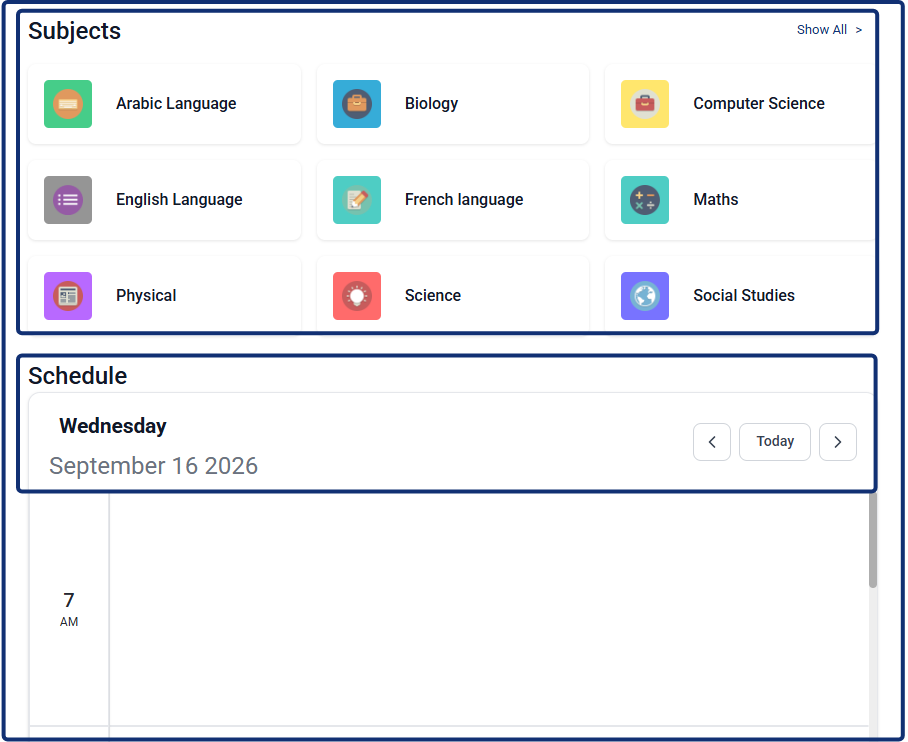
- Displays active course cards for quick access.
- Show All Link: Allows students to open their full list of enrolled subjects.
4. Schedule Panel (Student Classes & Timetable) #
Located beneath the Courses panel, this widget tracks the student’s daily timetable and class schedule:
- Header Controls: Displays the active day and full date (e.g., Tuesday, July 21 2026) along with navigation arrows (< >) and a Today button to switch days.
- Timetable Grid: Displays hourly time slots (e.g., 7 AM, 8 AM) plotting scheduled classes, virtual sessions, and live timing slots.
5. Recent Announcements #
Positioned on the right pane below the Quick Launch Hub:
- Displays active school broadcasts, administrative memos, and pinned announcements.
- Includes a Show All link to open the full announcements repository.
6. Assessments & Deliverables Center (Exams / Assignments / Virtual Class) #
Located at the homepage, this interactive multi-tab panel tracks due and pending learning tasks:
- Filter Tabs: Toggle between Exams, Assignments, and Virtual Class.
- Status Filter Dropdown: Filter assessment records using the dropdown menu by selecting All, Due, Missed, Graded, or Submitted.
- Assessment Cards: Displays individual task cards showing status, deadline, subject tag, and actions. Assessment cards feature a Launch button to directly open active exams or a disabled Missed badge indicating the submission deadline has passed.
- Pagination Controls: Navigate through additional pages using the numbered indicators (1, 2) or directional arrows (< >).


