Skip to content
| Manual Bsera
| Manual Bsera

English
English
Arabic French

| Manual Bsera
| Manual Bsera
Popular Search reportreport cardBehaviorالمالت

Teacher Account

  • Login Page
  • Motivation
    • The New Way of Learning
    • My Score
  • Home Page
    • Edit Profile
    • Homepage
    • My Tasks & Action Required 
    • Courses Widget (All Courses)  
    • Announcements & Upcoming Events 
    • PUBLIC PROFILE 
    • Clubs Courses
  • Show all courses
    • COURSES
      • Charts and Behavior Analysis
      • Tab 1
        • Excel Sheet Grades Import
        • Manage Students Groups
        • Managing Content
        • Lecture Management
        • Students List
        • Students’ Report Summary
      • Tab 2
        • Course Materials
        • Video Lectures
      • Tab 3
        • In-Class Activity
        • Assignments, Exams
        • Assignment Actions
        • Assignment Sections
        • Assignment Questions
        • Exams
        • Exam Styles
        • Exam Sections
        • Assignment settings
        • Exam Settings
        • Exam Settings | More options
      • Tab 4
        • Digital Libraries
        • Weekly Study Plan
        • Semester Plan
        • Course Preparations
      • Tab 5
        • Management of Timetable 
  • Books
    • Books
  • Classroom Attention Indicator
    • Classroom Attention Indicator –
  • Messages
    • Sent Messages
    • Draft Messages
    • Archived Messages
    • Compose
    • Deleted Messages
  • Discussions
    • Discussion Rooms
    • Adding New Discussion Rooms
    • Adding New Posts
    • Comments Management
  • Questions Banks
    • Add Questions from Q-Banks
    • Exam Questions
    • Add Bulk Questions
  • My Schedule
    • Schedule
    • Academic Calendar
      • Academic Calendar
      • Editing Events
      • Adding Events
  • Virtual Classes
    • Virtual Classrooms
  • Teacher Library
    • PUBLIC LIBRARY
    • VIRTUAL LABS 
    • My Files
  • Absence Report
    • Absence Report
  • Certificates | Letters
    • Issued Certificates | Letters
    • Certificates | Letters
    • My Certificates
    • Sign Multiple Certificates
    • My Letters
    • Issue Certificates
  • Teacher B~SERA AI
    • Manage Content (Xsera) 
    • My Teaching Hub 

Parent Account

  • Login Page
  • Homepage
    • Personal Menu
    • Edit Profile
    • Personalized Child Dashboard & Learning Analytics 
    • Services & Quick Access Tools 
    • Homepage
    • Student Accounts
  • Messages
    • Deleted Messages
    • Draft Messages
    • Archived Messages
    • Compose
    • Sent Messages

Student Account

  • Login Page
  • Home Page
    • Personal Menu
    • Edit Profile
    • Quick Access – Exams, Assignments, Virtual Class 
    • Student Homepage
  • Subjects
    • Subjects
    • Course Materials
    • Video Lectures
    • Discussion Rooms
    • Online Assignments 
    • Exams
  • Previous Course Contents
    • Previous Subject Contents
  • Book
    • books
  • My Schedule
    • Schedule
    • Weekly Study Plan
    • Academic Calendar
      • Academic Calendar
      • Adding Events
      • Editing Events
  • Digital Library
    • Digital Library 
    • Subjects Library
    • Public Library
    • Custom Libraries
    • My files
  • Evaluation Tools
    • Evaluation
    • form
  • Virtual Classes
    • Virtual Classrooms
  • Messages
    • Draft Messages
    • Messages
    • Compose
    • Inbox
    • Sent Messages
    • Archived Messages
    • Deleted Messages
  • Attendance
    • Daily Lateness
    • Lesson Absences
    • Daily Absences
    • Subject Absences Summary
    • Lesson Lateness
    • Absences Summary
  • Certificates | Letters
    • Certificates | Letters
  • Student B~SERA AI
    • Circle to Learn  
    • Study Plan (Student) 
    • My Learning Hub 

Teacher Supervisor Account

  • Login Page
  • Homepage
    • Edit Profile
    • Announcements & Upcoming Events 
    • Courses Widget (All Courses)  
    • My Tasks & Action Required 
    • Homepage
  • Academic Calendar
    • Calendar
    • Editing Events
    • Adding Events
  • Certificates | Letters
    • Issue Certificates
    • Certificates | Letters
    • My Letters
    • My Certificates
    • Issued Certificates | Letters
  • Evaluations | Surveys
    • Forms
    • Evaluation | Surveys
  • Messages
    • Draft Messages
    • Compose
    • Archived Messages
    • Mailbox
    • Deleted Messages
    • Sent Messages
  • Management Reports
    • Management Reports
  • Public Library
    • Public Library/Digital Content
  • Questions Banks
    • Questions Banks
  • Teachers list
    • Exams/Homework Without Questions
    • Teachers’ List
  • Virtual Classrooms
    • Upcoming Smart Classes
    • All Smart Classes
    • Recorded Smart Classes
    • Virtual Classrooms
  • Weekly Plan
    • Weekly Plan
  • Question Banks
    • Question Banks
  • Teachers' Statistics
    • Teachers’ Statistics
  • Teachers' Attendance Report
    • Teachers’ Attendance Report
  • Central Exams Comprehensive Report
    • Central Exams Comprehensive Report

Administrator Account

  • Login Page
  • Dashboard/Realtime Overview
    • Teachers Attendance Report
    • Teachers’ Preparations Report
    • Students’ Scores
    • Most Active Teachers in the Group
    • Online Users
    • Dashboard/Realtime Overview
  • important links
    • IMPORTANT LINKS 
  • Homepage
    • Edit Profile
    • Favorite Reports  
    • Goals Module (Xsera Quests) 
    • To Do List and Announcements 
    • Action Queue 
    • Active Alerts 
    • Personal Menu
    • Homepage
  • Support / Request
    • Transfer All School Guardians
    • Activation Ticket Resolution Report
    • Transfer Student
    • Fix Score
    • User Information
    • Guardian Transfer
    • New Feature Requests
    • LMS Support
    • Activation Ticket Resolution 
    • Internal Support
    • FAQs
  • Users
    • Manage Badge
    • Enhancements to User Management Filters
    • Users / Students
    • Students Without Sections
    • Guardians
    • Teachers
    • Teacher’s Statistics
    • Supervisors
    • Management
  • Weekly Plan
    • Weekly Plan /Dynamic weekly
    • weekly plan / Static
  • Subject Management
    • Questions Banks
    • Schedule Journal
    • Courses Management
    • Courses
    • Adding Courses
    • Course Templates
    • Trees
    • Areas
    • Areas – Adding Criteria
    • Exams Schedule
    • Exams Mark Comparison
    • Full Schedule
    • lectures
      • Lectures/ Schedules 
      • Lectures – Students List
      • Adding Lectures
      • Lectures/Manage Halls and Manage Medals 
      • Alternative Teacher
      • Lectures
      • Managing Timeslots
      • Adding Bulk Lectures
  • Settings
    • Enable PDF Conversion
    • Closure Management
    • Settings /part one
    • System Settings – part Two
    • System Settings / part three
    • System Settings—Part Four
    • Stages
    • Years
    • Years/Adding a Semester Plan
    • Years – Copy to Semester
    • Review Students E-Portfolios
  • Calendar
    • Adding Tasks to Calendar
    • Editing Events
    • Adding Events
    • Calendar
  • Messages
    • Draft Messages
    • Archived Messages
    • Inbox
    • Sent Messages
    • Compose
    • Deleted Messages
  • Announcements
    • Announcements
  • Report
    • Reports
    • Management Reports
    • Admissions Request Report
    • Redemption Statistics
    • Schools: C-Inspire Report
    • Students Badge Report
    • Medals Report
    • Files Log
    • School Group Absences
    • Full Day Absences Detailed Report
    • Lectures Absences Detailed Report
    • Activity Log
    • Messages Log
    • Score Drop
    • VCR Activation Report
    • Modules Activation Report
  • Certificates | Letters
    • Certificates | Letters
  • Forms and Assessments
    • Forms and Assessments
    • Forms
    • Evaluations
    • Assessments
  • Virtual Classrooms
    • Manage Users
    • Virtual Classrooms
  • Public library
    • Custom Libraries
  • B~SERA AI
    • Questions Banks (Xsera) 
    • Course Template 360 View 
    • Xsera AI Academic Planner 
    • Xsera AI Curriculum Engine 

Manager Account

  • Login Page
  • Homepage
    • Edit Profile
    • Personal Menu
    • Realtime Overview
    • Students’ Scores
    • Teachers’ Attendance Report
    • Teachers’ Preparations Report
  • Students
    • Daily Lateness
    • Daily Absences
    • Students’ Numbers Report
    • Registration Approval
    • Absences and Behaviors Reports
    • Students
  • Teachers
    • Daily Absences
    • Conditional Course Absences Summary
    • Course Absences Summary
    • Course Absences
    • Lectures Absences
    • School Schedule
    • Teachers Timeslots
    • Workload Report
    • Teachers
  • Guardians
    • Parents/Guardians
  • Messages Log
    • Messages Log
  • Class Visits
    • Class Visits
    • Adding New Class Visits
    • Copy from Template
  • Absences
    • Full Day Absences Detailed Report
    • Lectures Absences Detailed Report
  • Announcements
    • Announcement
    • Add Announcements
  • Stages
    • Stages
  • Messages
    • Draft Messages
    • Archived Messages
    • Sent Messages
    • Mailbox –
    • Inbox –
    • Deleted Messages
    • Compose
  • Academic Calendar
    • Select Calendar Owner
    • Adding Tasks to Calendar
    • Editing Events
    • Adding Events
    • Calendar
  • Management Reports
    • Management Reports
  • VCR Activation Report
    • VCR Activation Report
  • Public Library
    • My Files
    • Custom Libraries
    • Public Library (All)
  • Evaluations | Surveys
    • Evaluation stages report
    • Adding Surveys
    • Evaluations and Surveys
  • Forms
    • Forms
  • Certificates | Letters
    • Create New Templates
    • Manage Layouts
    • Create New Layout
    • My Signature
    • My Letters
    • My Certificates
    • Manage Templates
    • Issue Certificates | Letters
    • Certificates | Letters
  • Virtual Classrooms
    • Virtual Meetings
      • Virtual Meetings
      • Virtual Meetings
        • Recorded Smart Classes
        • Upcoming Smart Classes
        • MS Teams
          • MS Teams Meeting Room Main Screen
          • Joining MS Teams Meeting Rooms
          • Adding Virtual Meetings Using MS Teams
        • Zoom Meeting
          • Zoom Meeting Room Main Screen
          • Adding New Zoom Meeting Rooms
          • Joining Zoom Virtual Meeting Room
  • Statistics
    • Communication Statistics
  • Activation Reports
    • Activation Reports
  • Stats
    • General Statistics
    • Stats
    • Statistics with Interaction
  • Full Schedule
    • Full Schedule

Adviser Account

  • Login Page
  • Main Menu
    • Main screen
  • HOME
    • Edit Profile
  • Students List
    • Conditional Courses Absences
    • Student Affairs Summary
    • Full day Absences Detailed Report
    • Student list
    • Course Absences Summary
    • Absences Summary
    • Course Absences
    • Daily Absences
    • Students List
  • Guardians List
    • Parents List
  • Academic Calendar
    • Edit Event
    • Adding Event
    • Academic Calendar
  • Messages
    • Inbox
    • Draft Messages
    • compose
    •  Sent Messages
    • Deleted Messages

Floor Supervisor

  • Login Page
  • Absences
    • Teachers Attendance Report
    • Full Day Absences Detailed Report
  • Students List
    • Daily Absences
    • Course Absences
    • Absences Summary
    • Course Absences Summary
    • Conditional Courses Absences
    • Full day Absences Detailed Report
    • Student Affairs Summary
    • Students List
  • Messages
    • Inbox
    • Trash
    • Sent Messages
    • Archived Messages
    • Draft Messages
    • Compose
    • Mailbox

Senior Teacher

  • Login Page
  • Homepage
    • Edit Profile
    • Announcements & Upcoming Events 
    • Courses Widget (All Courses)  
    • My Tasks & Action Required 
    • Homepage
  • Academic Calendar
    • Calendar
    • Adding Events
    • Editing Events
  • Certificates | Letters
    • Certificates | Letters
    • Issued Certificates | Letters
    • My Certificates
    • My Letters
    • Issue Certificates
  • Evaluations | Surveys
    • Forms
  • Messages
    • Sent Messages
    • Deleted Messages
    • Mailbox
    • Archived Messages
    • Compose
    • Draft Messages
  • Management Reports
    • Management Reports
  • Public Library
    • Public Library/Digital Content
  • Teachers list
    • Teachers’ List
    • Exams/Homework Without Questions
  • Virtual Classrooms
    • Virtual Classrooms
    • Upcoming Smart Classes
    • Recorded Smart Classes
    • All Smart Classes
  • Weekly Plan
    • Weekly Plan
  • Question Banks
    • Questions Banks
  • Teachers' Statistics
    • Teachers’ Statistics
  • Teachers' Attendance Report
    • Teachers’ Attendance Report
  • Central Exams Comprehensive Report
    • Central Exams Comprehensive Report
View Categories
  • Home
  • Docs
  • Student Account
  • Student B~SERA AI
  • Study Plan (Student) 

Study Plan (Student) 

The Study Plan is an adaptive learning workspace in Classera powered by XSERA AI. It enables students to generate AI-driven study pathways based on diagnostic assessments, manually build custom learning plans, track specific study goals, and verify concept mastery through post-assessments. 
Accessing the Study Plan  #

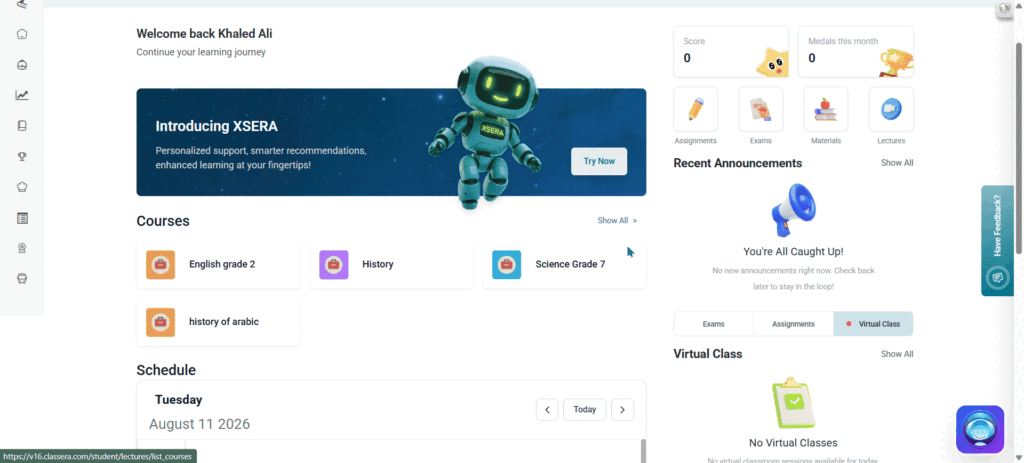
Students can access the Study Plan (Student Compass) workspace through two convenient pathways: 

Pathway 1: Via the Student Dashboard (Direct Access)  #

  1. On the Student Homepage Dashboard, locate the Student Compass section. 
  1. Select your target subject from the course dropdown menu on the right (e.g., Science Grade 7). 
  1. View your active Current Plan, task duration, progress status, and assigned goals directly on the dashboard. 
  1. Click View All Plans at the bottom of the card to open the full Student Compass study goals workspace. 

Note: The Student Compass section on the Student Homepage Dashboard will only appear if the student has been assigned a study plan by a teacher or has created a custom plan. 

Pathway 2: Via My Learning Hub (Course Navigation)  #

  1. From the Student Homepage, navigate to the Courses section. 
  1. Click Show All in the top right corner of the Courses panel. 
  1. Hover over your target course card (e.g., Science Grade 7). 
  1. Select My Learning Hub from the pop-up menu. 
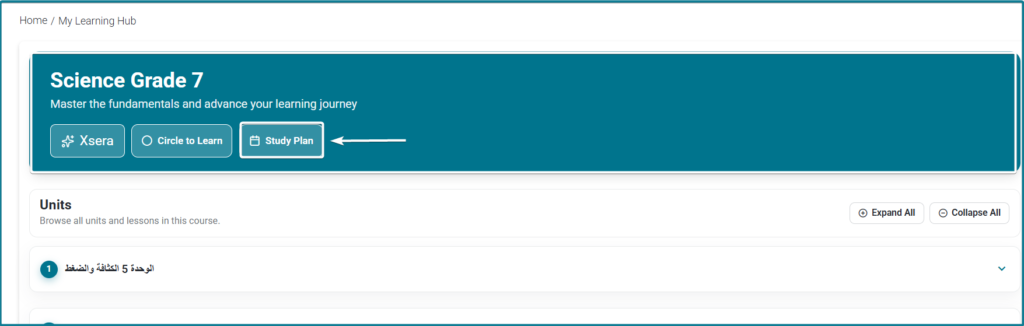
  1. Click Study Plan in the top header banner to open the study goals workspace. 

Option 1: Creating an AI-Powered Study Plan with XSERA  #

Step 1: Launch XSERA Creation  #

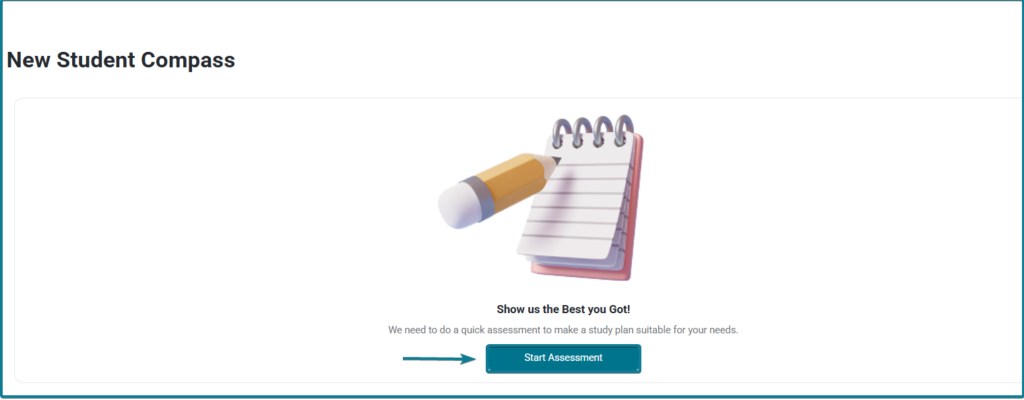
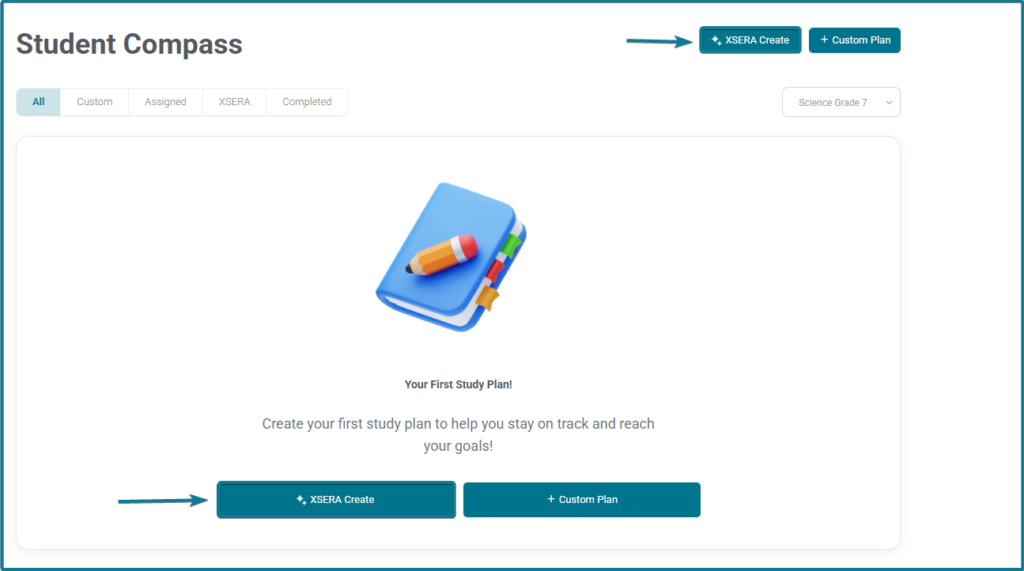
  1. First-Time Users: If you do not have any existing study plans, click the XSERA Create button located in the center card of your empty workspace. 
  1. Returning Users: If you already have existing study plans, click the XSERA Create button located in the top-right section of the Student study plan workspace to start a new diagnostic plan. 
Step 2: Select Units and Lessons  #

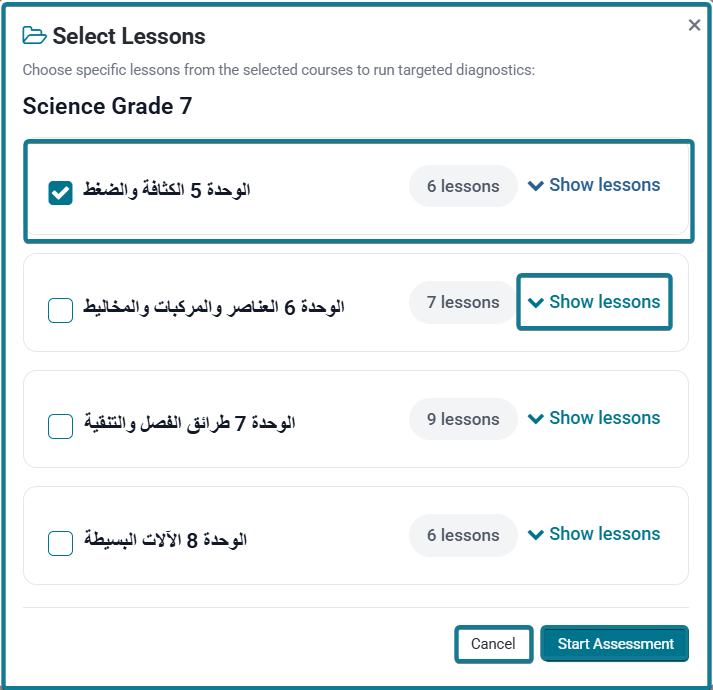
  1. Click on Start Assessment0. 
  1. A modal window titled Select Lessons opens displaying the course units (e.g., الوحدة 5 الكثافة والضغط). 
  1. Check the boxes next to the units or expand lessons (Show lessons) to choose specific topics for targeted diagnostics. 
  1. Click Start Assessment. 

Step 3: Complete Diagnostic Assessment  #

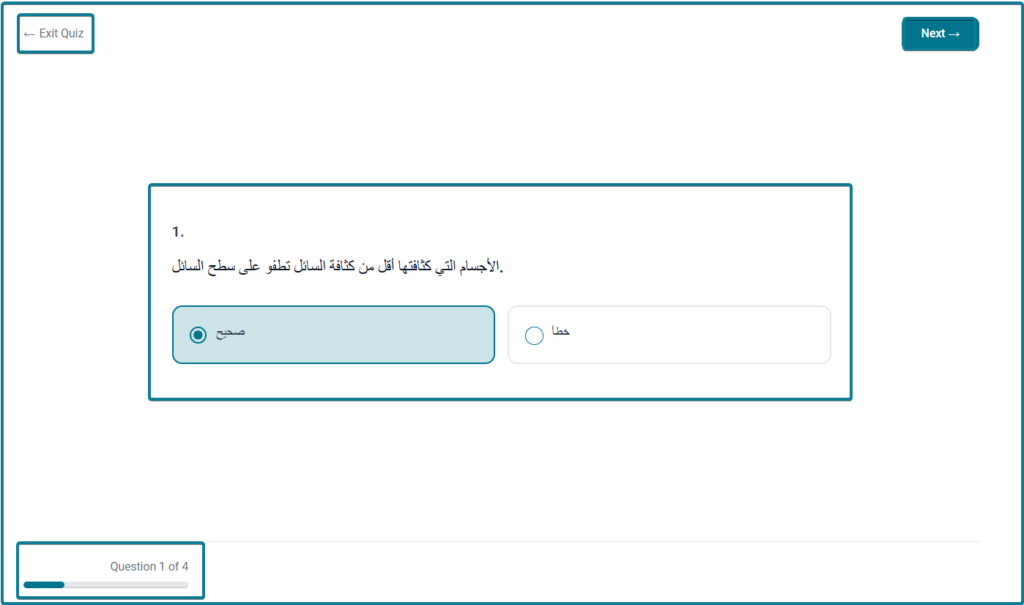
  1. Answer the generated diagnostic questions. 
  1. Upon submitting the diagnostic test, a summary modal titled Closer to your Goals! displays: 
  1. Total Score & Time Spent: Shows accuracy percentage and completion time. 
  1. Learning Outcomes: Highlights masteries and correct response ratios. 
  1. Areas Of Improvement: Identifies specific concepts requiring targeted study. 
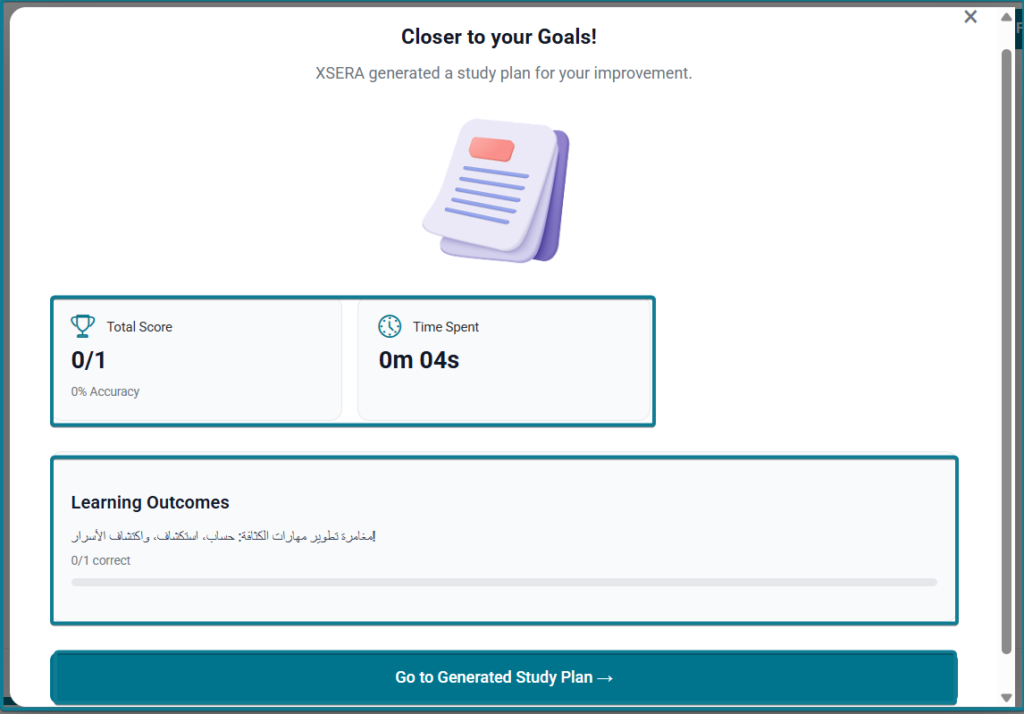
  1. Click Go to Generated Study Plan. 

Option 2: Creating a Custom Study Plan Manually  #

In addition to AI-generated plans, students can manually design tailored learning pathways through the Custom Plan feature. 

Step 1: Launch Custom Plan  #

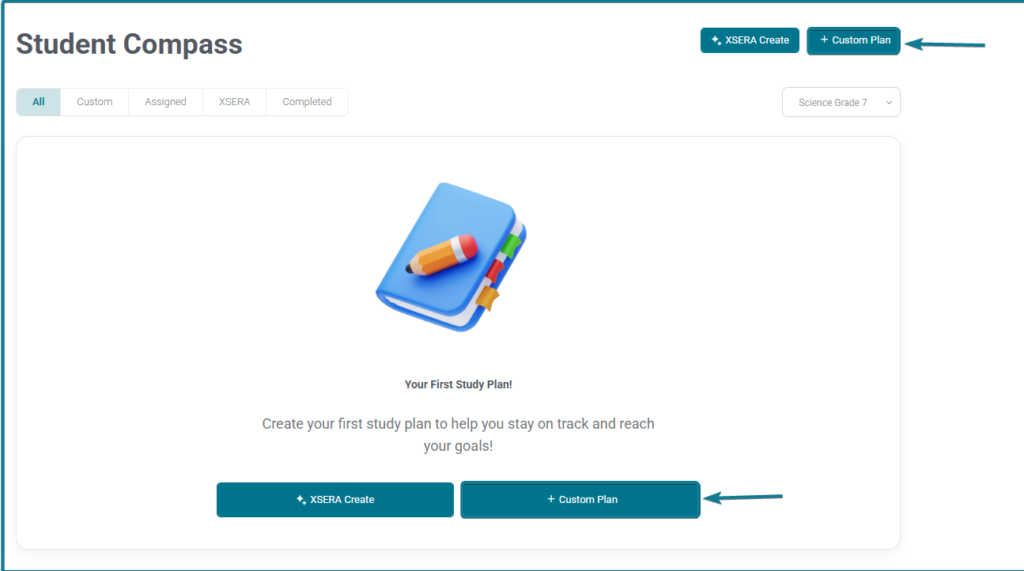
  • First-Time Users: If you do not have any existing study plans, click the Custom Plan button located in the center card of your empty workspace. 
  • Returning Users: If you already have existing study plans, click the + Custom Plan button located in the top-right section of the Student Compass workspace. 
Step 2: Select Quests & Review Total Hours  #

  1. Browse through the All Quests list displaying available learning modules, difficulty levels (Advanced, Intermediate), and estimated completion times. 
  1. Click + Add next to any quest you want to include in your plan. 
  1. The system automatically calculates and updates the cumulative duration under Total Hours (e.g., 60 hrs, 216 hours). 

Step 3: Configure Plan Details  #

In the Details pane on the right side: 

  1. Study Plan Name: Enter a unique title for your plan in the text box. 
  1. Start Date: Select your desired start date using the calendar picker. 
  1. End Date: Select your target completion date using the calendar picker. 

Step 4: Finalize & Manage Custom Plans  #

  1. Click Create Plan to save (or click Back to Plans to discard changes). 
  1. Saved custom plans appear under the Custom tab in Student Compass with a yellow Custom tag. 
  1. Each custom plan card provides quick action buttons to Edit plan details, Select Plan to make it your active view, or Delete the plan. 

Working Through the Study Plan & Tracking Goals  #
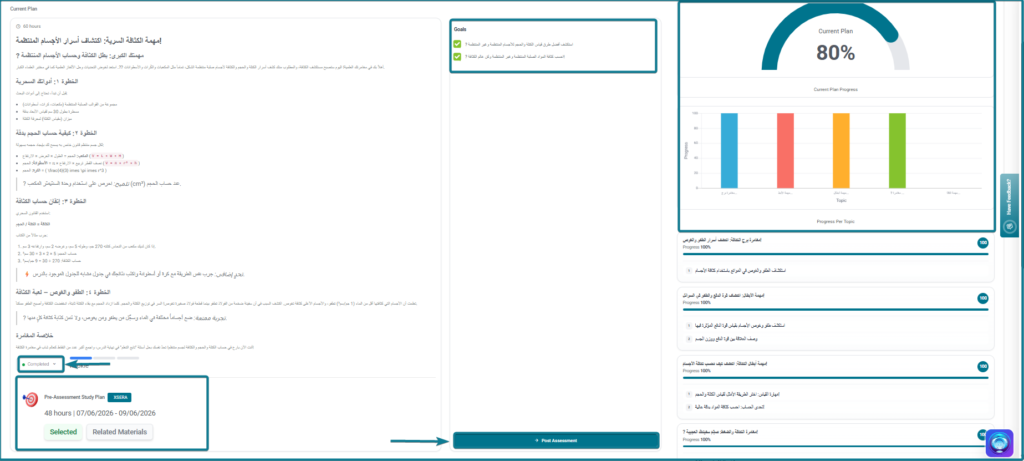
1. Plan Overview & Content Reading  #

  1. The active plan displays reading materials, key concepts, formulas, and real-world application notes tailored to your improvement areas or selected custom quests. 
  1. Track the estimated duration (e.g., 60 hours, 48 hours) and assigned date windows. 

2. Managing Goal Statuses  #

To unlock and proceed to the final verification test, students must manually update their task status: 

  1. Click the status dropdown menu on the study plan card (options: Not Started, In Progress, Completed). 
  1. Select Completed once you have studied the material and achieved the listed goals. 
  1. Check off the corresponding checkboxes under the Goals panel on the right side of the screen. 
  1. Unlocking Post-Assessment: Once all study plan goals are checked and the plan status is updated to Completed, the Post Assessment button becomes active at the bottom of the workspace. 
  1. Taking Post-Assessment: Click Post Assessment to take a follow-up test designed to verify whether you have successfully mastered the target learning goals. 
  1. Looping & Completion Rules (Teacher-Side Settings): 
  1. Adaptive Loop Setting: Teachers can configure system rules to keep the student in a learning loop—generating follow-up study iterations if the post-assessment score falls below the required threshold. 
  1. Mastery & Reporting: Once the student successfully passes the post-assessment, the study plan marks completion, and an automated diagnostic report is generated and sent to the teacher dashboard. 
What are your Feelings

Share This Article :

  • Facebook
  • X
  • LinkedIn
  • Pinterest
Circle to Learn  My Learning Hub 
Table of Contents
  • Accessing the Study Plan 
    • Pathway 1: Via the Student Dashboard (Direct Access) 
    • Pathway 2: Via My Learning Hub (Course Navigation) 
  • Option 1: Creating an AI-Powered Study Plan with XSERA 
    • Step 1: Launch XSERA Creation 
    • Step 2: Select Units and Lessons 
    • Step 3: Complete Diagnostic Assessment 
  • Option 2: Creating a Custom Study Plan Manually 
    • Step 1: Launch Custom Plan 
    • Step 2: Select Quests & Review Total Hours 
    • Step 3: Configure Plan Details 
    • Step 4: Finalize & Manage Custom Plans 
  • Working Through the Study Plan & Tracking Goals 
    • 1. Plan Overview & Content Reading 
    • 2. Managing Goal Statuses